
What is an FNSKU label?
FNSKU stands for Fulfillment Network Stock Keeping Unit. It is the identifier Amazon uses for an offer in its fulfillment network. When your inventory uses Amazon barcodes, the FNSKU links the units to your seller’s inventory record, so the same catalog product sold by different sellers can be distinguished.
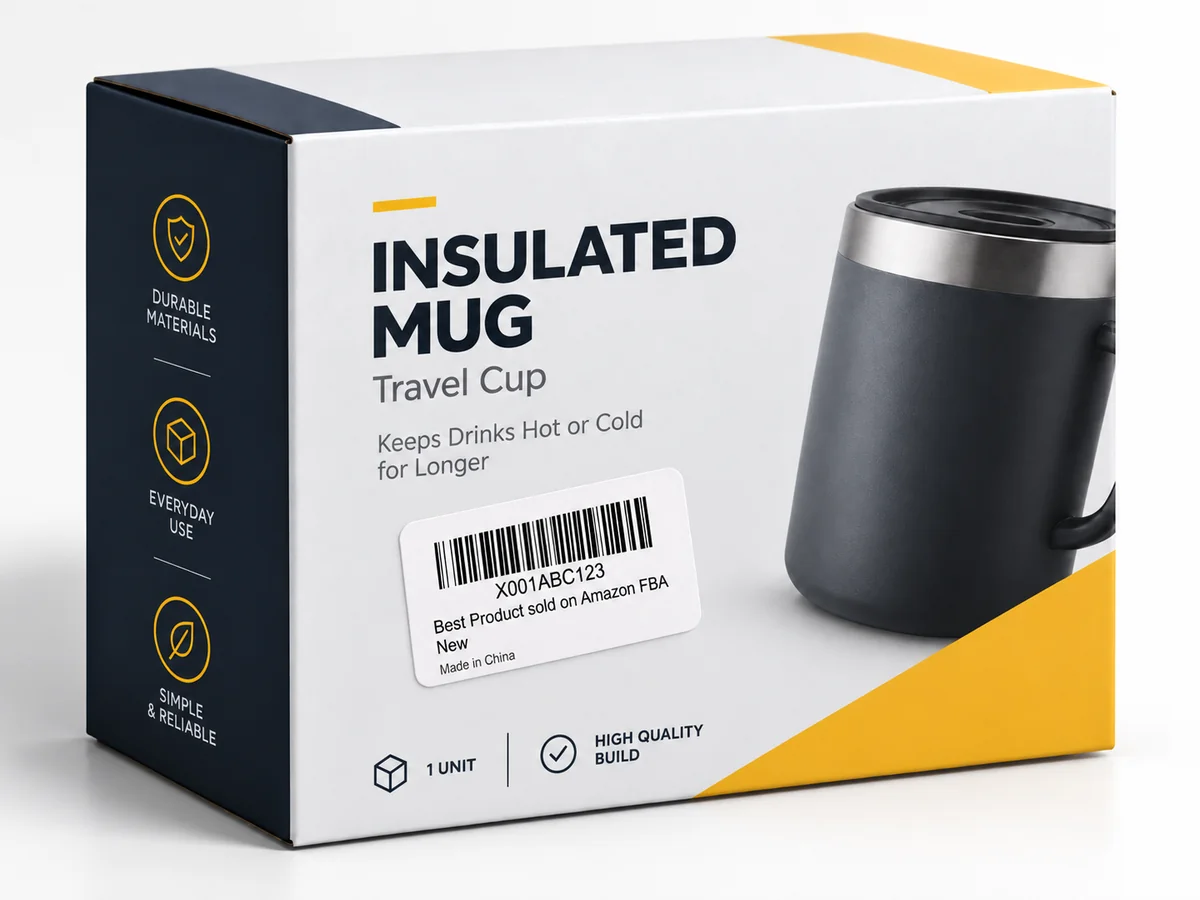
The label is the physical version of that identifier: a scannable barcode, the readable FNSKU underneath, a product title, and the item’s condition. Amazon uses these details when receiving, storing, picking, and shipping inventory. The box pictured above is an illustration; its sample code is not an identifier to reuse for your products. See Amazon’s product-label example for the core label fields.
An FNSKU is not a serial number for one individual unit. Multiple units of the same offer can carry the same FNSKU. Keep product variations and conditions separate: a similar-looking box is not enough to establish that a label belongs on it.
FNSKU, ASIN, seller SKU, and UPC: what’s the difference?
These identifiers answer different questions. Before printing, check which field you copied rather than assuming any product code will work.
| Identifier | What it identifies | How to use it |
|---|---|---|
| FNSKU | An offer in Amazon’s fulfillment network. | Use the assigned value when your inventory requires an Amazon barcode label. |
| ASIN | A product in Amazon’s catalog. | Find the product detail page. An ASIN alone does not establish your required unit-label barcode. |
| Seller SKU | An inventory reference within your seller account. | Organize your offers and stock. Do not substitute it for the FNSKU. |
| UPC / EAN | A manufacturer’s product identifier, usually printed on retail packaging. | Use it for FBA tracking only when your offer is eligible and configured for manufacturer barcodes. |
For the catalog distinction, read Amazon’s explanation of ASINs. Your Seller Central inventory record and shipment workflow are the practical sources for deciding which identifier to print.
When do you need an FNSKU sticker?
You need an Amazon barcode label when your FBA inventory is required or configured to use Amazon barcodes. A retail UPC on the box does not automatically make an additional label unnecessary.
The March 31, 2026 barcode change
For inventory shipped on or after March 31, 2026, Amazon’s announcement sets out these requirements:
- Resellers without the Brand Representative selling role in Brand Registry: Amazon barcode stickers are required even when products already have manufacturer barcodes.
- Brand owners with that Brand Representative role: products with manufacturer barcodes can use the manufacturer-barcode option, subject to eligibility.
- Products without manufacturer barcodes: both brand owners and resellers need Amazon barcode stickers.
Amazon also ended commingling practices under this change. Read the official barcode eligibility announcement and check the FBA barcode choice and labeling FAQ for your account.
If your offer qualifies for manufacturer-barcode tracking and is set up that way, a separate FNSKU sticker may not be needed. Confirm the product’s eligibility and barcode setting in Seller Central before preparing a batch. The policy details here concern US FBA; check the requirements for your destination marketplace.
Arrange labeling before sending inventory
Amazon stopped offering FBA prep and item-labeling services for the US store on January 1, 2026. Arrange for your own team, supplier, or prep provider to complete the required work before inbound shipment. The change also covers inventory flowing into FBA through AWD, AGL, Amazon SEND, and Supply Chain Portal. See Amazon’s US prep and labeling service notice.
Find your FNSKU, then create the label
Start in Seller Central with the correct marketplace and FBA offer. Find the product in your inventory, confirm its variation and condition, and use the item-label printing option to obtain Amazon’s label. Keep that output as your reference when preparing labels in another tool. Amazon staff describe the Print item labels option and the effect of barcode settings.
If the identifier shown is an ASIN rather than the FNSKU you expected, check your barcode preference and the offer’s configuration. Do not invent an X-prefixed code or change a barcode’s characters to make it look like another label.
- Copy the assigned FNSKU. Check every character against the Seller Central label for the exact offer.
- Open the Ship Toolkit FNSKU label tool. Enter the FNSKU, product model, title, origin, and condition. Replace all example values with your actual product details.
- Choose your physical label size. Match the PDF dimensions to the stock loaded in your printer.
- Create, review, and download. Compare the readable code and product details with Amazon’s reference, then test-print and scan one label before printing the batch.
Ship Toolkit formats an existing identifier into a printable label. It does not assign an FNSKU, connect to your Amazon account, or confirm that a code belongs to your product. A successful preview is not a substitute for verifying the source data.
Label size, printing, and placement
Choose stock that fits the complete label
A 2.25 × 1.25-inch label is a practical thermal-label option and the default in Ship Toolkit. It is not Amazon’s single mandatory size. Amazon’s published guidance describes labels 1–2 inches tall and 2–3 inches wide. Choose dimensions that leave room for the barcode, readable code, title, condition, and clear space around the bars. See Amazon’s label size and print specifications.
The tool offers several dimensions for different workflows. A size appearing in the menu is not a statement that Amazon accepts it for every product. Check the current requirements for your shipment before selecting smaller or larger stock.
Print a clean barcode at the intended size
Use black printing on white, non-reflective adhesive stock. Amazon recommends a laser printer at 300 DPI for best results. If you use a thermal printer, make sure its output stays crisp and scannable; check the printer guidance in Amazon’s label paper and printing requirements.
Print at Actual Size or 100% and disable fit-to-page scaling. For sheet labels, match the template and paper size exactly: a common US Letter 30-up sheet has 1 × 2⅝-inch labels, but it is not interchangeable with a single-label thermal PDF. Amazon’s product-label printing guide also calls for printing without scaling.
Before the full run, check for clipped text, faint bars, smudges, and missing white space. Scan the test print and compare the decoded value with your assigned FNSKU. Scanning successfully confirms readability, not that the code belongs to the product in front of you.
Place it on the sellable unit
Put the label on a flat, smooth area, away from corners, seams, and curves. For units using Amazon barcodes, obscure competing UPC, EAN, or ISBN barcodes so the wrong code cannot be scanned. When protective packaging is required, keep the intended barcode accessible on the outside. Do not cover Transparency authentication codes. These placement rules are described in Amazon’s barcode labeling guidance.
The unit label identifies the product inside the shipment. It does not replace an FBA box ID label or a carrier shipping label on the outer carton.
Other barcodes you may see
Prefixes are clues, not a labeling rule
Many familiar ASINs begin with B0, while Amazon barcode labels often show an FNSKU beginning with X00. These patterns can help you recognize a code, but they do not prove eligibility, seller ownership, or the correct barcode setting. Use the complete identifier from Seller Central; do not infer a product’s status from prefixes such as X005 or X006.
LPN stickers and app scans
You may encounter LPN stickers on returned or processed inventory. Treat them as separate handling identifiers, not as a source for creating a new FNSKU label. If an extra sticker obscures product information or you are unsure which offer a returned unit belongs to, verify its records before relabeling it.
A barcode scan in a shopping app may open a product listing, depending on the app and code. That behavior is not a reliable check of FBA eligibility or which seller owns the inventory. For shipment preparation, compare the unit with the offer and label shown in Seller Central.
Before you ship
- Confirm the marketplace, exact offer, variation, condition, and required barcode type.
- Copy the assigned FNSKU and replace every sample value in the label form.
- Match the PDF dimensions to your label stock and print at 100%.
- Scan a test label and compare its value with the Seller Central reference.
- Match each label to the correct unit, keep it accessible, and obscure competing product barcodes where required.
- Complete product prep and the separate carton and carrier labeling before dispatch.
Have your FNSKU ready?
Enter your product details, choose a label size, and download a printable PDF in your browser.
Create an FNSKU Label